
See how a tool works before you use it.
Choose a tool below. Each guide uses a screenshot and a few short steps. Complex workflows also include a quick video.
Browser tools
These tools run in your browser. Open the guide only when you need an example.
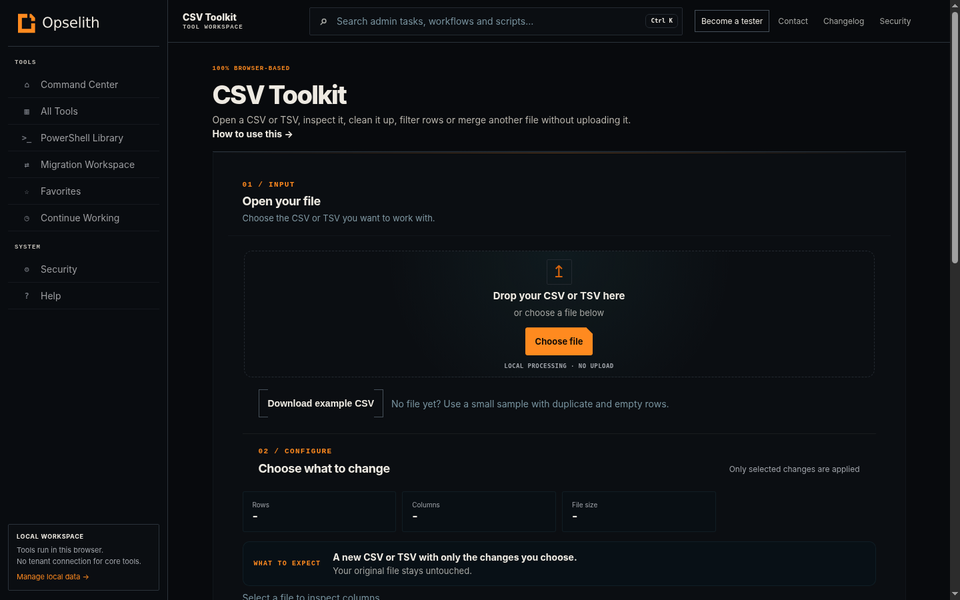
CSV ToolkitClean, filter or merge a CSV or TSV file.Open guide
How to use it
- Open your CSV or TSV.
- Choose the cleanup, filter or merge action you need.
- Review the preview before you apply the change.
- Download the cleaned file.
Your file stays local. Opselith processes it in this browser.
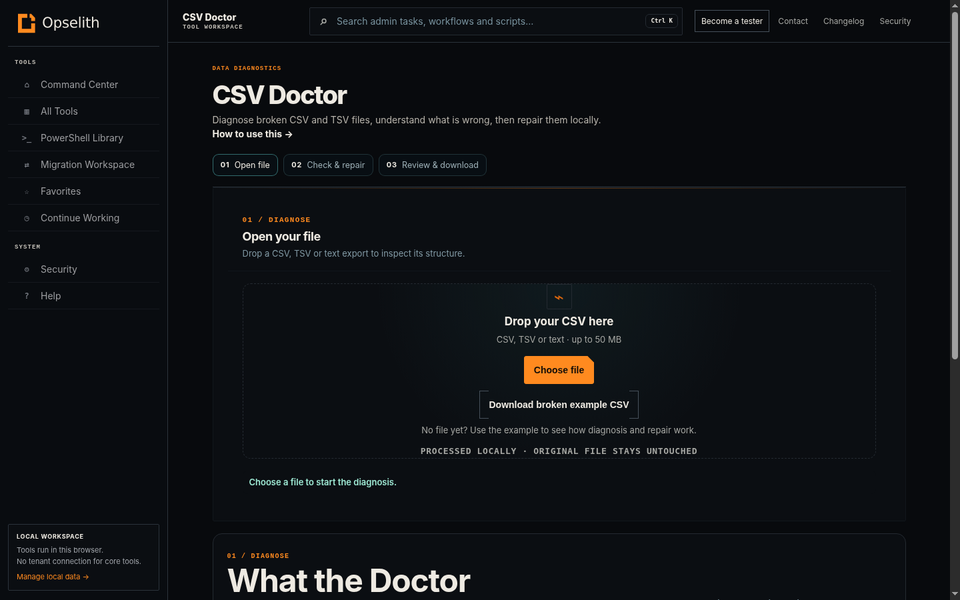
CSV DoctorFind why a CSV is broken and repair common problems.Open guide
How to use it
- Open the CSV or TSV that is causing problems.
- Read the issues Opselith finds.
- Choose the repair you want to apply.
- Review and download the repaired file.
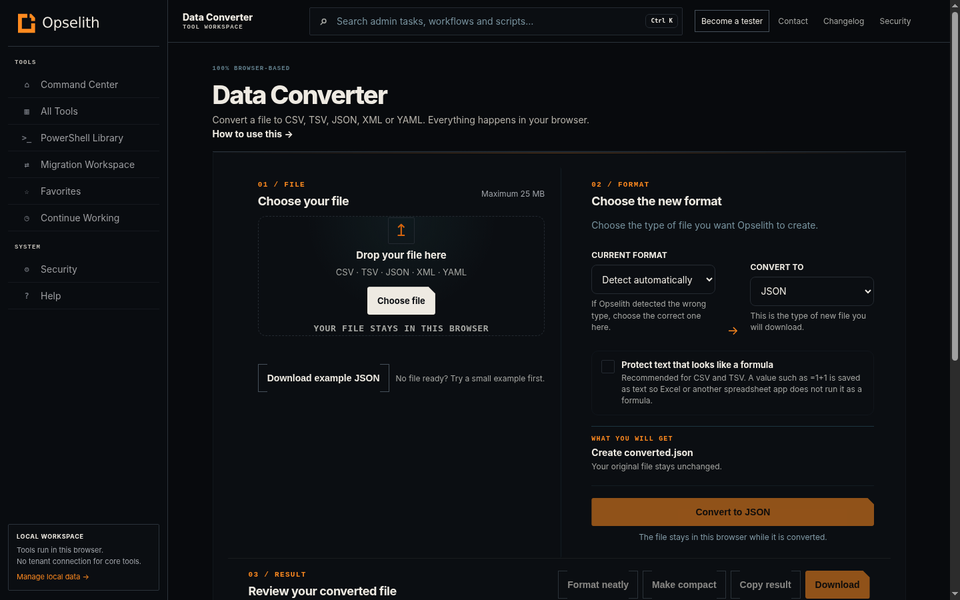
Data ConverterConvert CSV, TSV, JSON, XML or YAML.Open guide
How to use it
- Open or paste the source data.
- Choose the format you want to create.
- Review the converted result.
- Copy or download it.
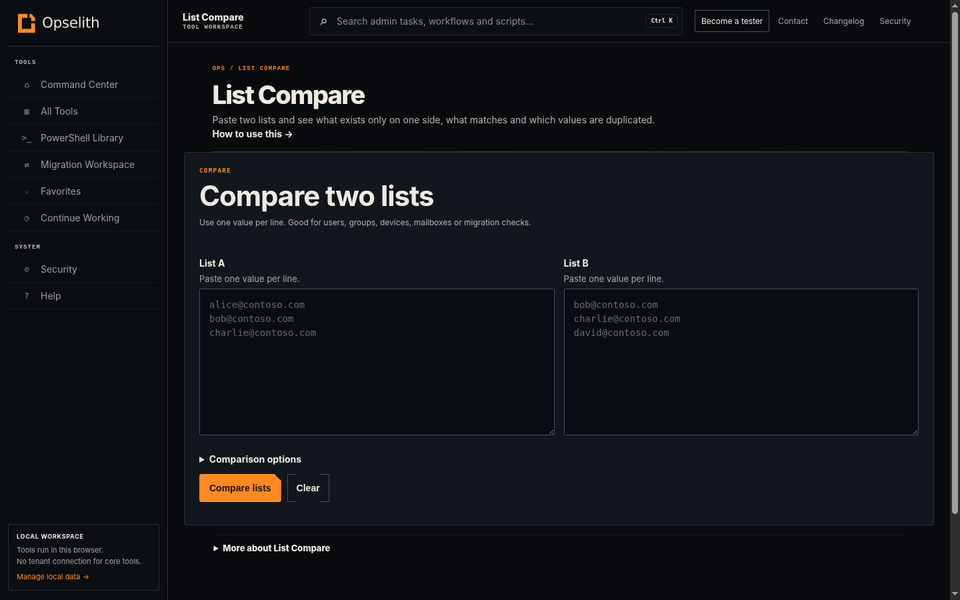
List CompareSee what is missing, matching or duplicated in two lists.Open guide
How to use it
- Paste the first list in List A.
- Paste the second list in List B.
- Select Compare lists.
- Open Only in A, Only in B, In both or Duplicates.
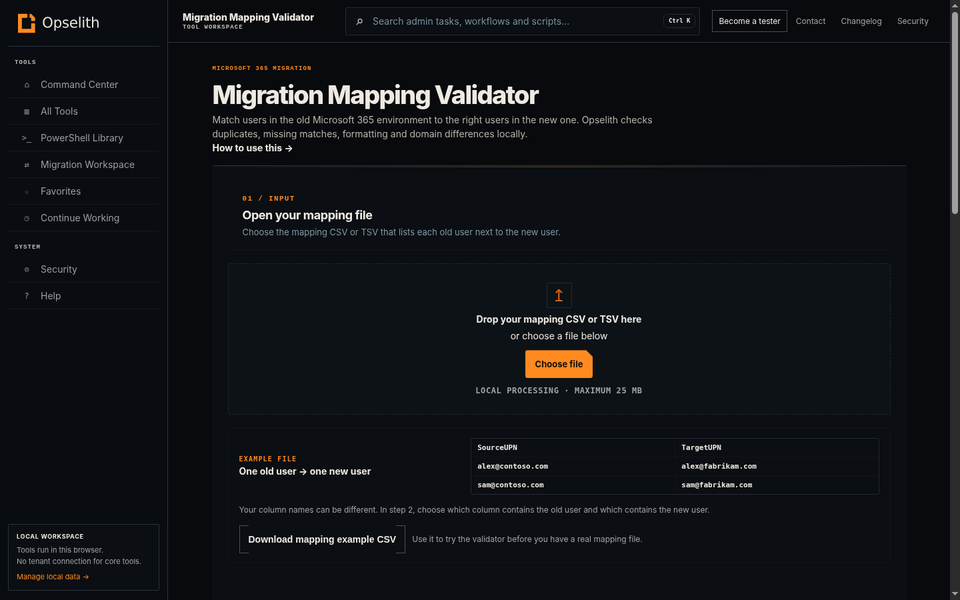
Migration Mapping ValidatorCheck that source users match the right target users.Open guide
How to use it
- Open the mapping CSV.
- Tell Opselith which columns contain the old and new user.
- Run the check.
- Fix red errors before you continue the migration.
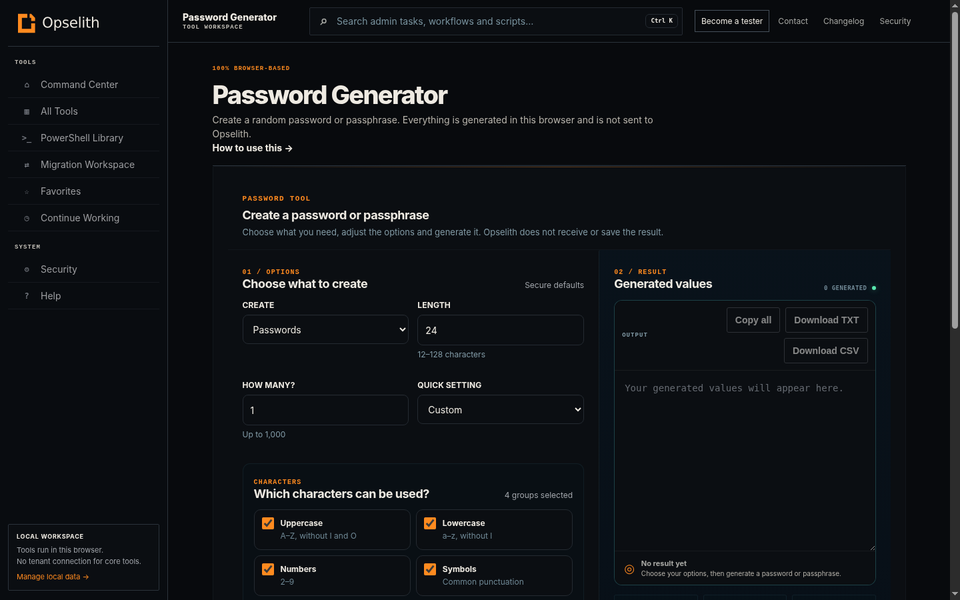
Password GeneratorCreate a random password or passphrase in this browser.Open guide
How to use it
- Choose Password or Passphrase.
- Select the length and allowed characters or words.
- Generate a new value.
- Copy it when you are satisfied.
Generated locally. Opselith does not receive the password.
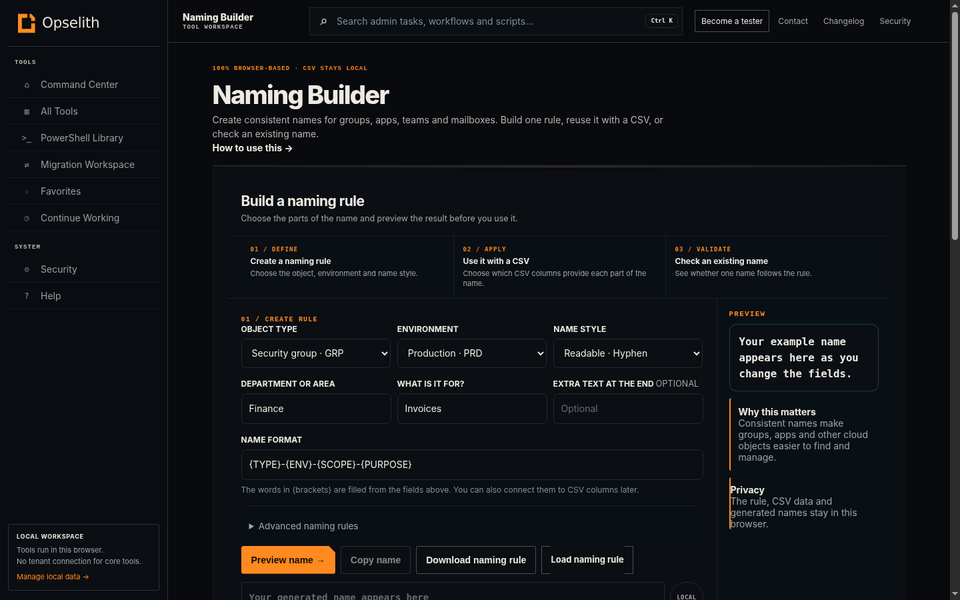
Naming BuilderCreate and check consistent Microsoft 365 names.Open guide
How to use it
- Choose what you are naming.
- Build the prefix, name and suffix rule.
- Preview the result.
- Use a CSV if you need many names.
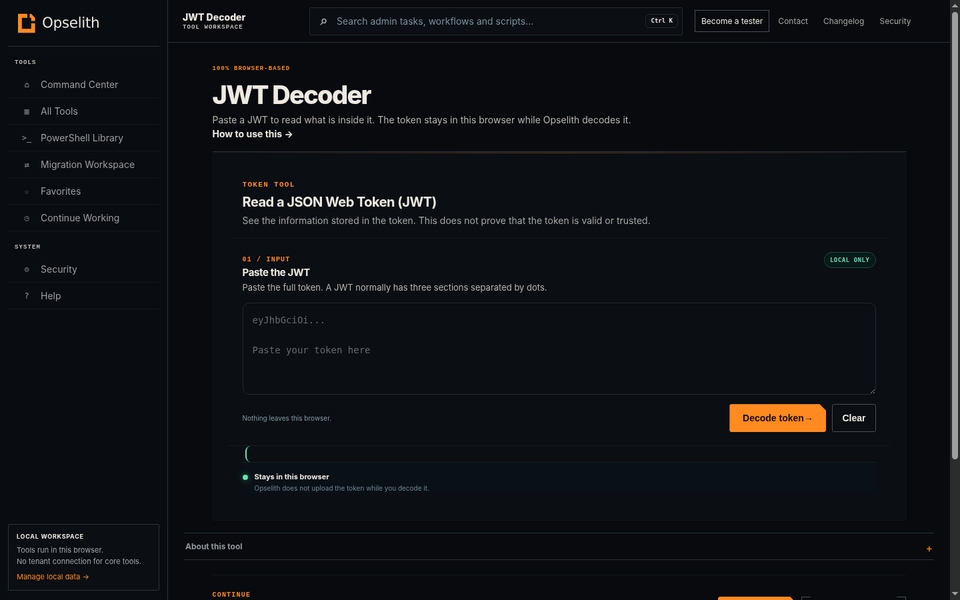
JWT DecoderRead the information stored inside a JSON Web Token (JWT).Open guide
How to use it
- Paste the JWT.
- Read the decoded header and values stored in the token (called claims).
- Check the dates, IDs or other values you need.
- Do not treat decoding as signature verification.
The token stays in this browser.
PowerShell
Opselith builds the script. You review it and run it yourself in PowerShell.
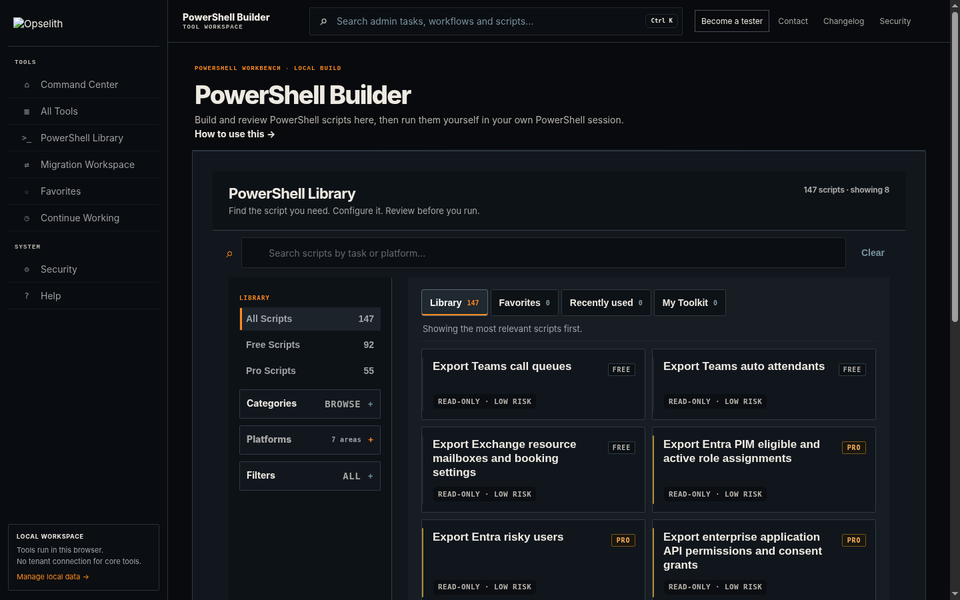
PowerShell BuilderFind an admin task, configure it and review the generated script.Open guide
How to use it
- Search for the admin task you want to perform.
- Open the script and enter the requested values.
- Select Generate and review the PowerShell.
- Copy or download the script, then run it yourself in your PowerShell session.
Opselith does not run the script. Review permissions, risk and the generated code before production use.
Quick visual walkthrough
Migration & local workspace
These guides explain the longer flows in plain language.
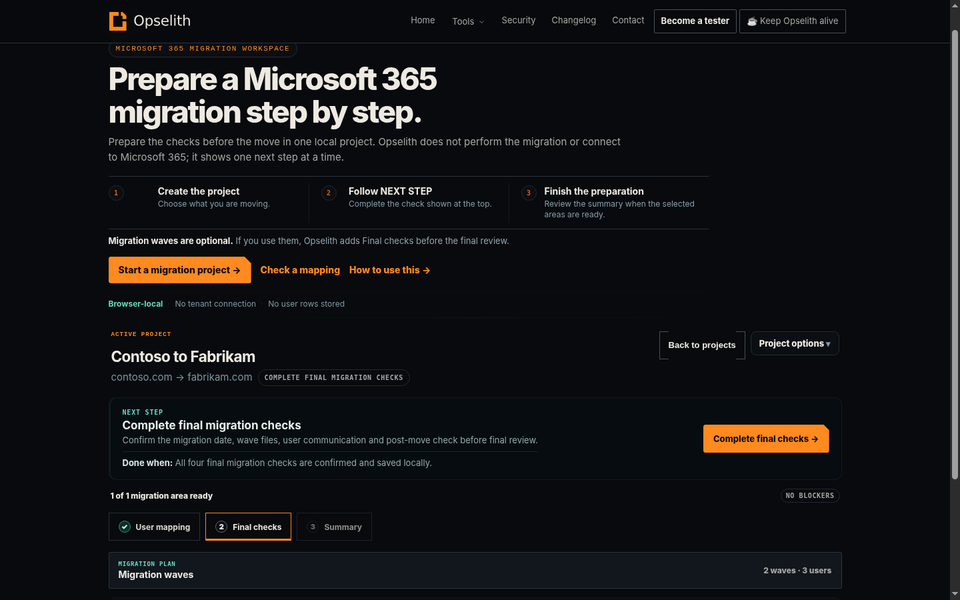
Migration WorkspacePrepare a Microsoft 365 migration one step at a time.Open guide
How to use it
What this workspace does: It keeps your migration preparation in one local project and tells you what to check next. It does not move users or connect to Microsoft 365 for you.
- Create a project and choose the Microsoft 365 areas you are moving.
- Check user mapping so every source user points to the correct target user.
- Optional: plan migration waves if you want to move users in smaller groups.
- Follow NEXT STEP. Opselith opens the next check for the areas you selected.
- Finish the preparation. With waves, confirm Final checks first. Without waves, Opselith takes you straight to Final Review when the selected areas are ready.
What is cutover? It is the point where the planned migration is actually carried out. Opselith calls the last preparation step Final checks and shows the technical term only as extra context.
Quick visual walkthrough
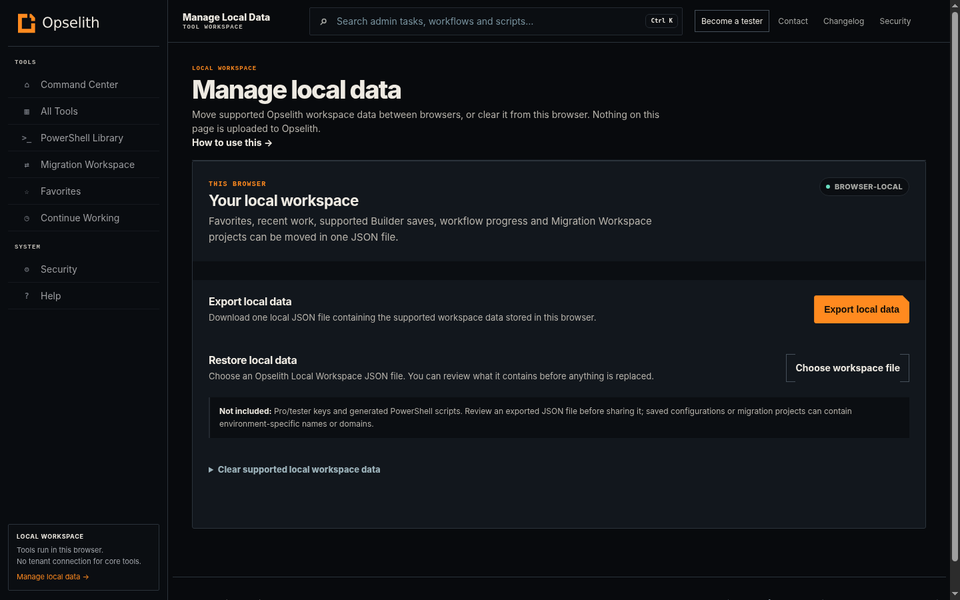
Manage local dataMove supported Opselith workspace data to another browser or restore a backup.Open guide
How to use it
- Select Export local data to download one JSON backup.
- On another browser, choose that file under Restore local data.
- Review the preview.
- Confirm the restore.
Pro/tester keys and generated PowerShell scripts are not included in this backup.